Speech-to-text editor for Mac

Streamlined transcription and editing.

Transcribe, edit and publish. Effortlessly glide through your audiovisual workflow with an intuitive editor — edit the words and the timings look after themselves.

Accurate: timing on every word. Private: runs on your Mac, works offline. Fast: an hour in under a minute.

Native macOS app · for Apple silicon (M‑series) Macs

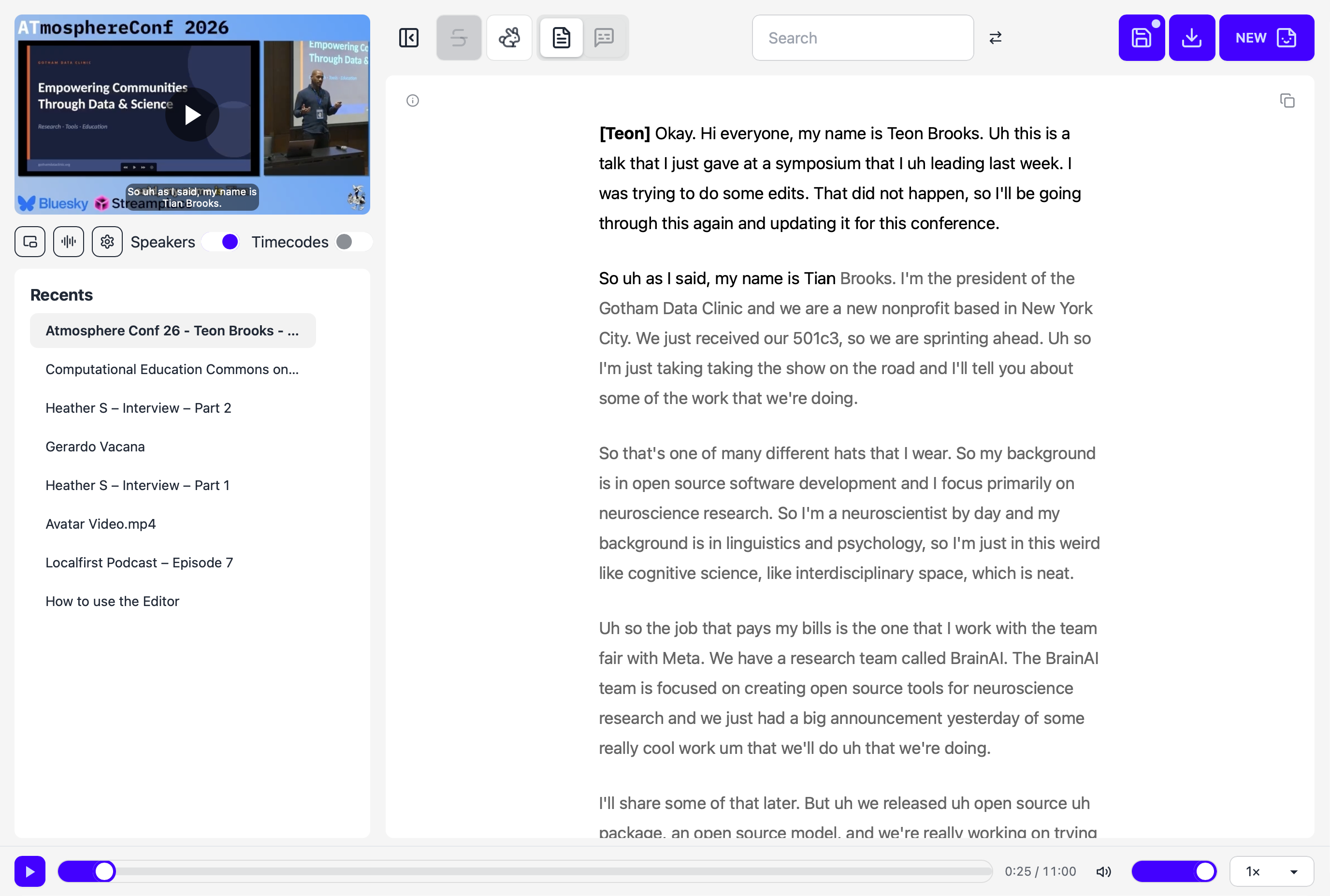
The Glider editor: video and project library on the left, an editable, speaker-labelled transcript on the right, playback controls along the bottom.
Private by design

Your media never leaves your machine.

Glider does everything on your own device, from transcription to the final re‑encode. Nothing is uploaded and there are no API keys to manage. Once the model is downloaded it works with no connection at all.

Local transcription

A fast, accurate speech model runs on your Mac's Apple silicon, speaker detection included. Your audio stays on your Mac.

Local encoding

Cuts, gap‑skips and burned‑in captions are rendered and re‑encoded on your device, not on a server.

Works offline

A native Mac app that needs no connection. Keep working on a plane, in the field, or anywhere without a signal.

Your projects, kept local

Your project library lives on your Mac. Your transcripts stay yours.

Try the editor

Edit a transcript, right here.

This is the editor at the heart of Glider, running in your browser with a sample recording. Correct words, strike out the ums, check the captions. Nothing you do leaves this page.

A web preview of Glider's editor. The Mac app adds fast on‑device transcription, native export and fully offline use.

The editor needs a bigger screen. Open this page on a laptop or desktop to try it.

Features

Simplicity meets power.

Everything between the raw recording and a published, searchable piece of media — in one editor.

Cuts that land between words

Every word Glider transcribes carries its own accurate timing, so edits happen at the word, not somewhere near it. No clipped syllables, no half‑breaths, no stray “um”.

  • Strike out to redact and cut: struck words disappear cleanly from the transcript, from playback and from any exported media.
  • Remove silent gaps: the silences between words close up, with controls for pause threshold and edge buffers.
  • Clip a highlight: strike out everything but the moment you want, and the export starts and ends right on the word.

An hour transcribed in under a minute

Glider's on‑device speech model is fast and accurate. It transcribes and diarizes an hour of audio in less than a minute, timing every word as it goes, with nothing uploaded.

  • Speakers, identified: diarization tells voices apart automatically, so the transcript arrives with speaker labels.
  • Download once, run locally: the model is fetched a single time, then everything runs on your machine.
Illustration

Edit, correct, search and replace

Edit the usual way: fix words, add punctuation, split and merge paragraphs. Find and replace across the whole transcript, with the active match highlighted. The timings look after themselves.

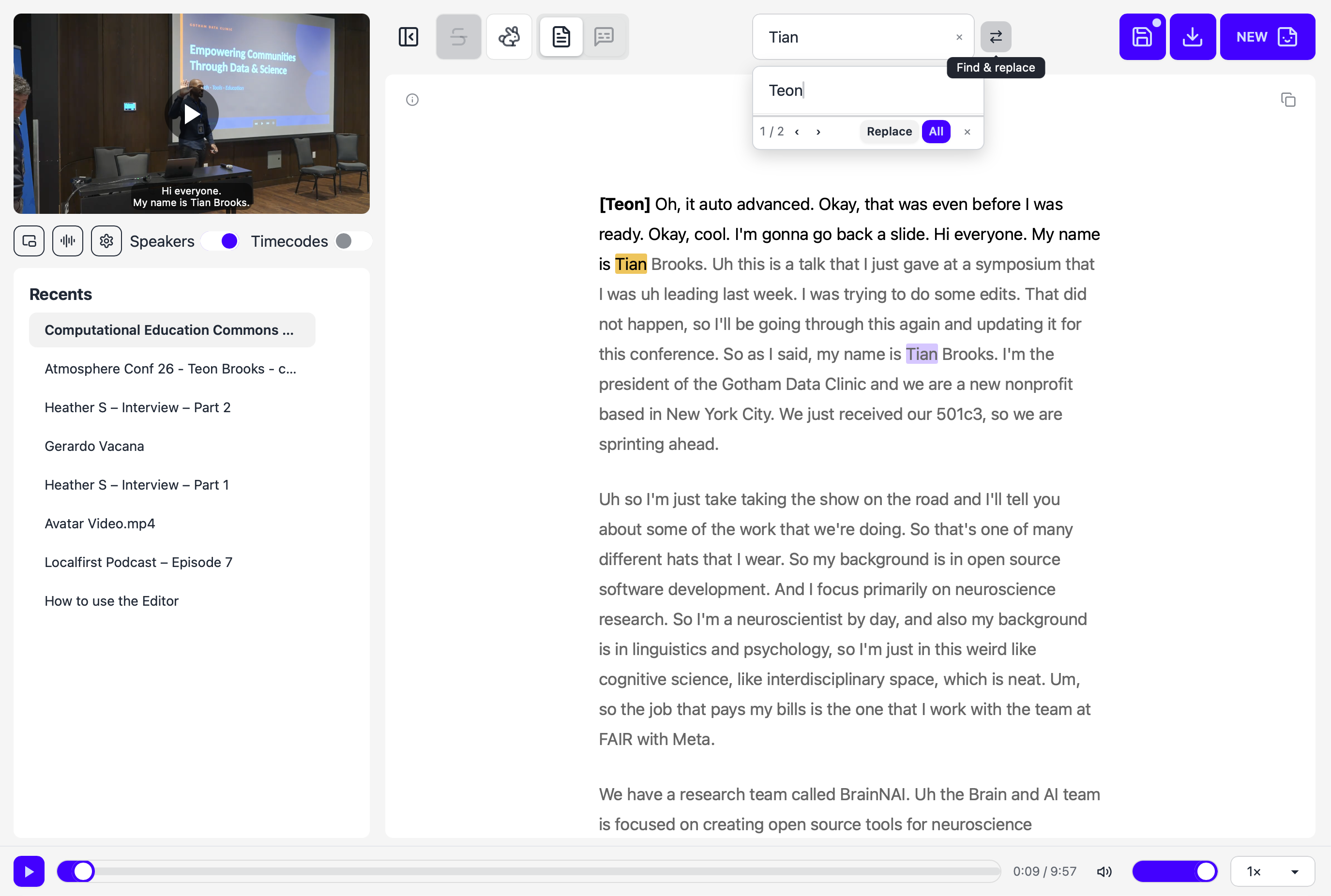
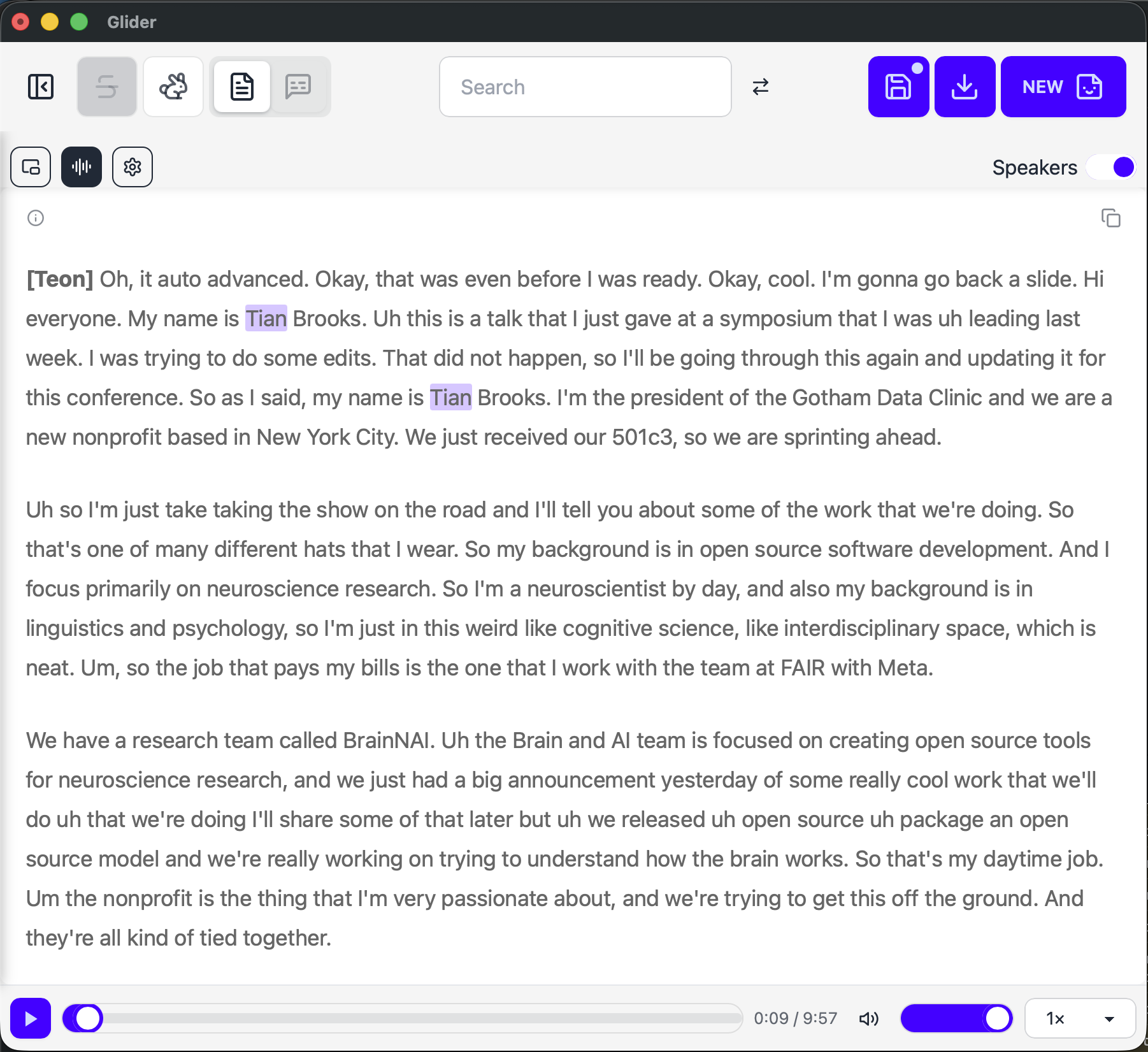
Find and replace: every 'Tian' in the transcript is highlighted, ready to be replaced with 'Teon'.

Captions, down to the word

Switch into caption mode to review and fine‑tune cues line by line, with timings kept in sync.

  • Hear exactly what you're captioning: play clip plays just that cue's stretch of audio, so you can check the words against the voice.
  • Jump to in and out points: go straight to where a cue starts or ends, then nudge the timing until it lands.
  • Insert, merge and delete: reshape cues in a click, and Glider sorts out the timings around them.
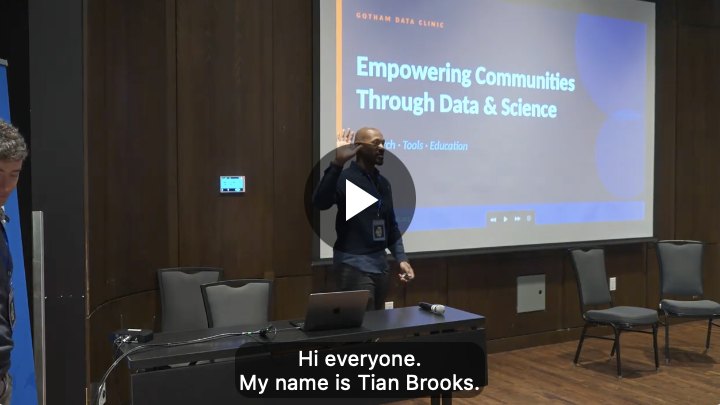
  • Karaoke‑style burned‑in captions: bake read‑along captions into the video, with the current word highlighted, Reels‑style.
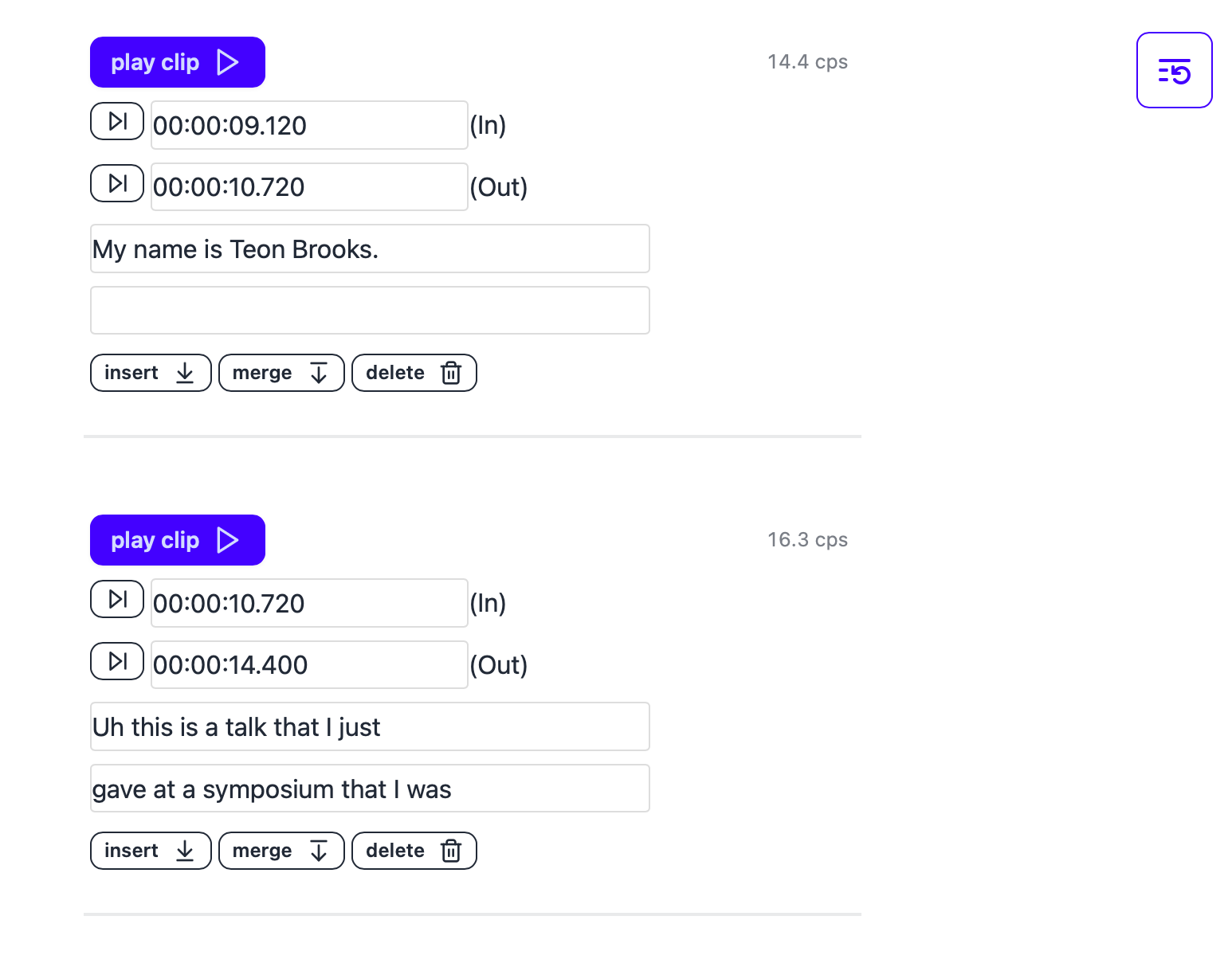
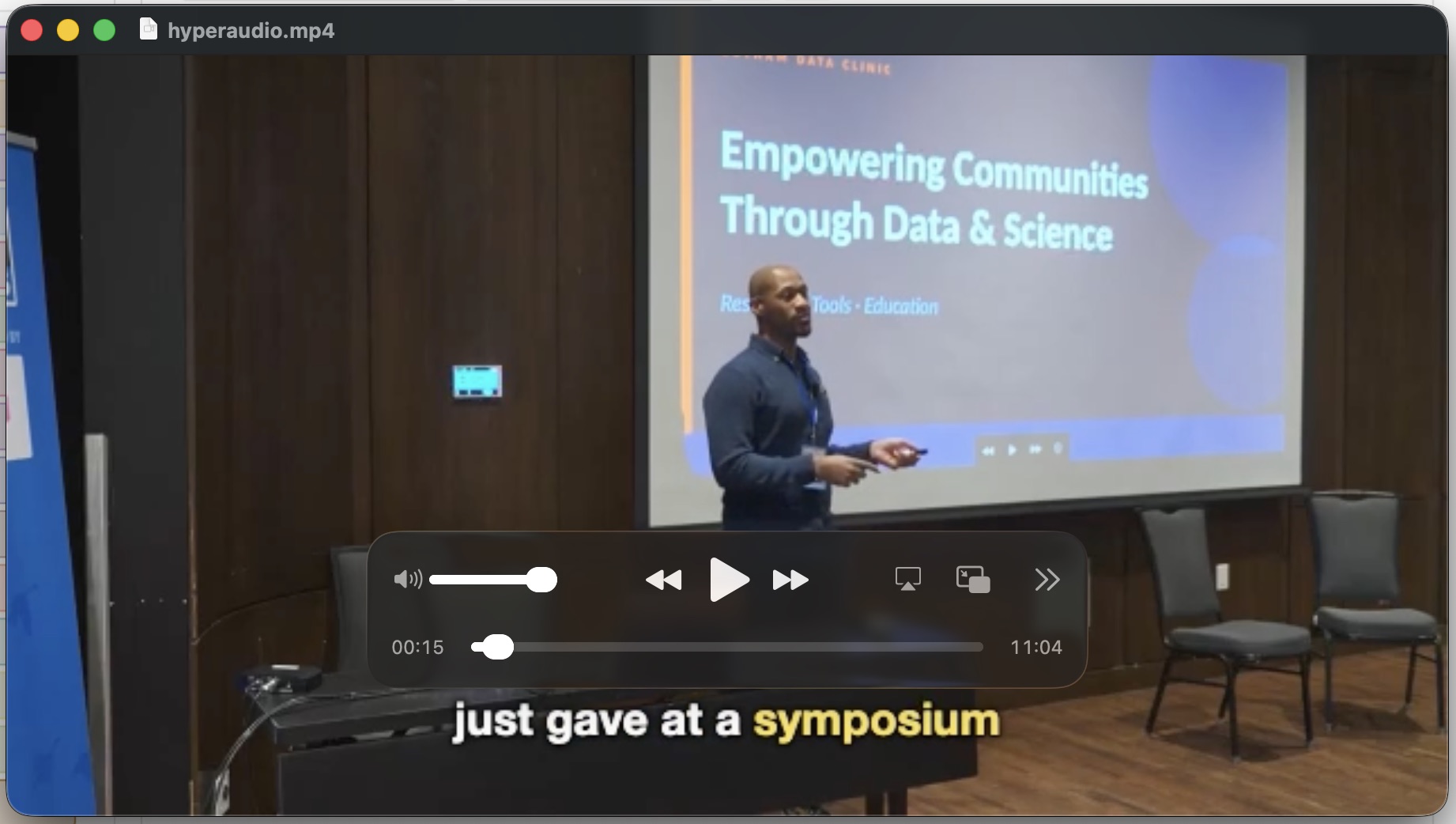
The caption editor: each cue has play clip, in and out times, its caption lines, a characters-per-second reading, and insert, merge and delete controls. Exported video with karaoke-style burned-in captions highlighting the current word.

Readable captions, by the numbers

Every cue shows its reading rate, and Glider flags any caption that goes over your limit, so viewers can keep up.

  • Characters per second or words per minute: cps is the streaming convention and wpm the broadcast one. Use whichever your house style does.
  • Sensible limits: flag above 17 cps, the usual limit for English, or 180 wpm, the upper end of broadcast practice. Flags are advisory only.
  • Line length and breaks: set the characters per line, and start a new caption at each paragraph if you like. A change of speaker always starts a new one.
  • Colour‑coded speakers: optionally give each speaker their own colour in exported WebVTT and SRT captions.
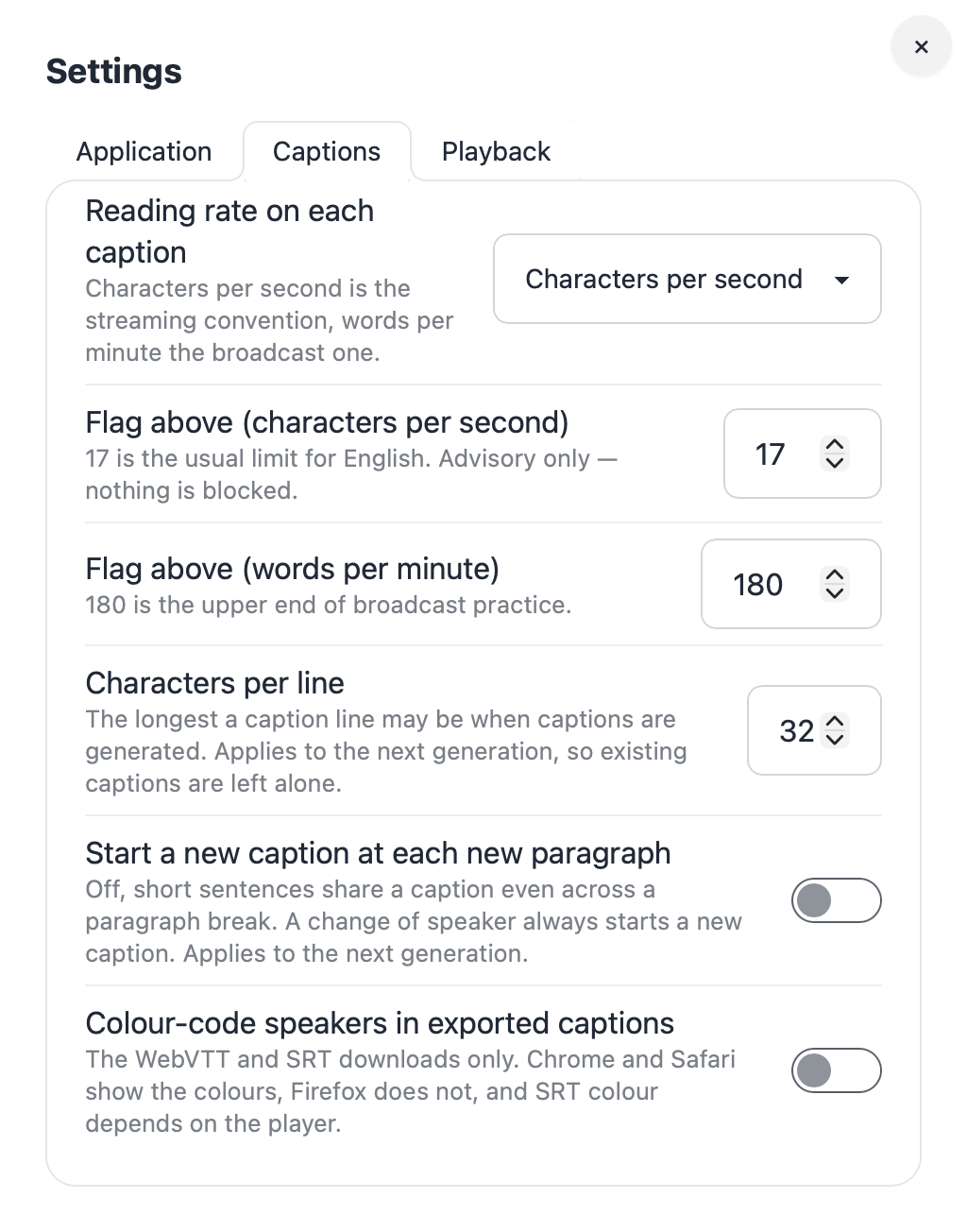
Caption settings: reading rate in characters per second or words per minute, flag above 17 cps or 180 wpm, characters per line, whether to start a new caption at each paragraph, and colour-coded speakers in exported captions.

Flexible export

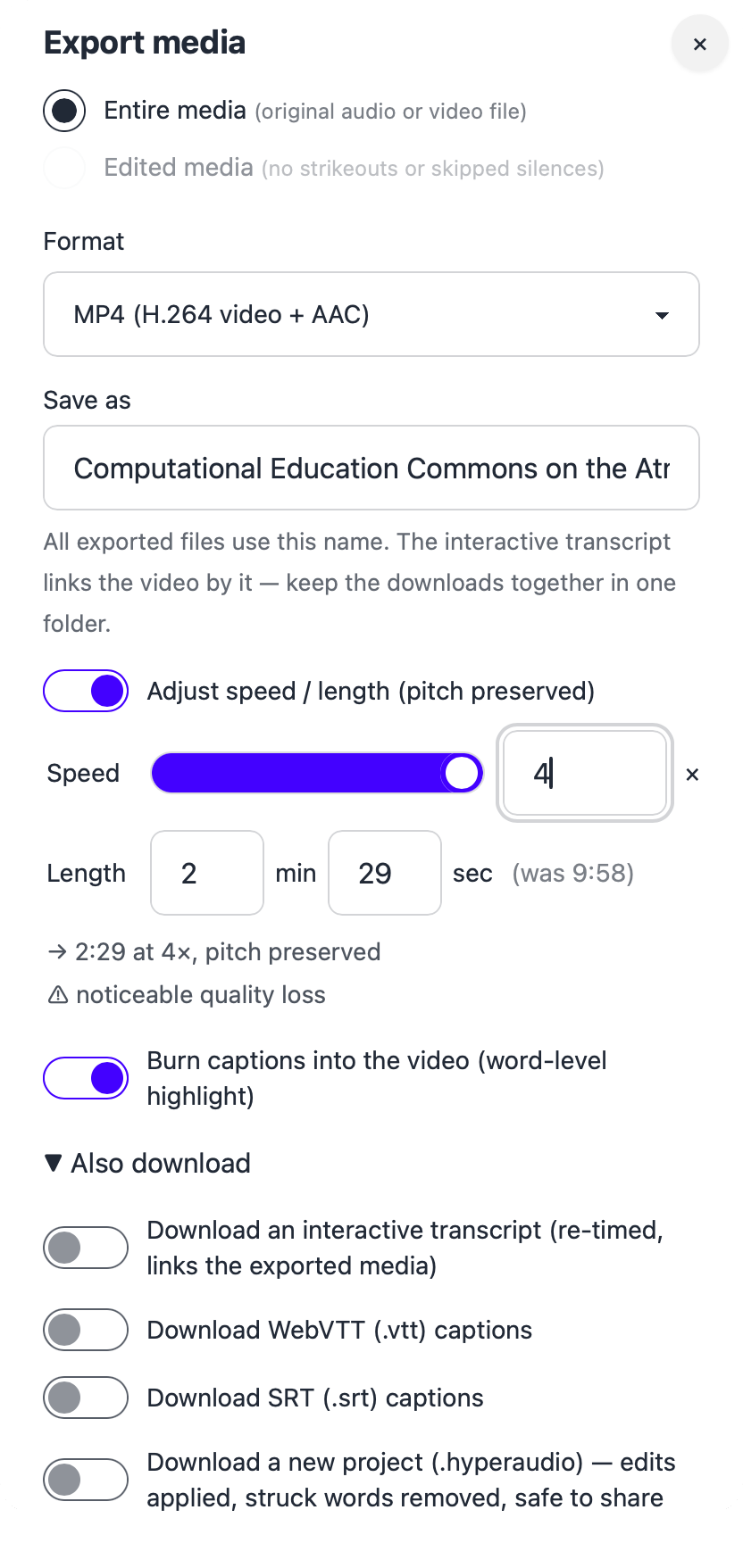
Export the whole recording or just your edit, with strikeouts removed and silences skipped. Everything is encoded on your device.

  • Speed it up, keep the voice: change the speed or set a target length, and the pitch stays natural.
  • Burned‑in captions: bake word‑level, highlighted captions into the video.
  • Everything alongside: download an interactive transcript that links the exported media, WebVTT and SRT captions, and a shareable project file with your edits applied.
  • Share a highlight: strike out everything but the moment you want, burn in word‑level captions, and export it ready to post. Film in portrait and it stays portrait, ready for Reels, TikTok or Shorts.
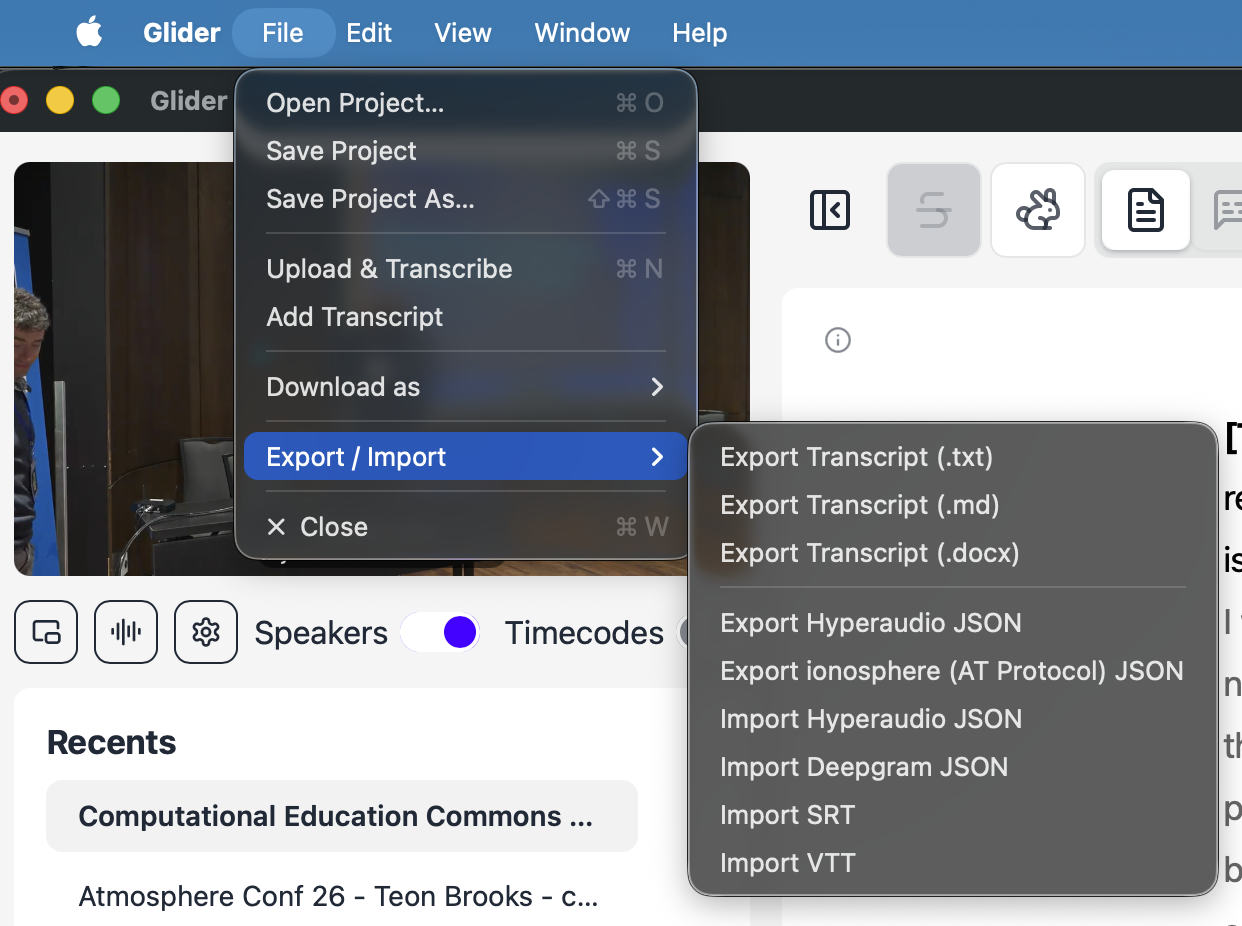
  • Documents too: export the transcript as plain text, Markdown or Word.
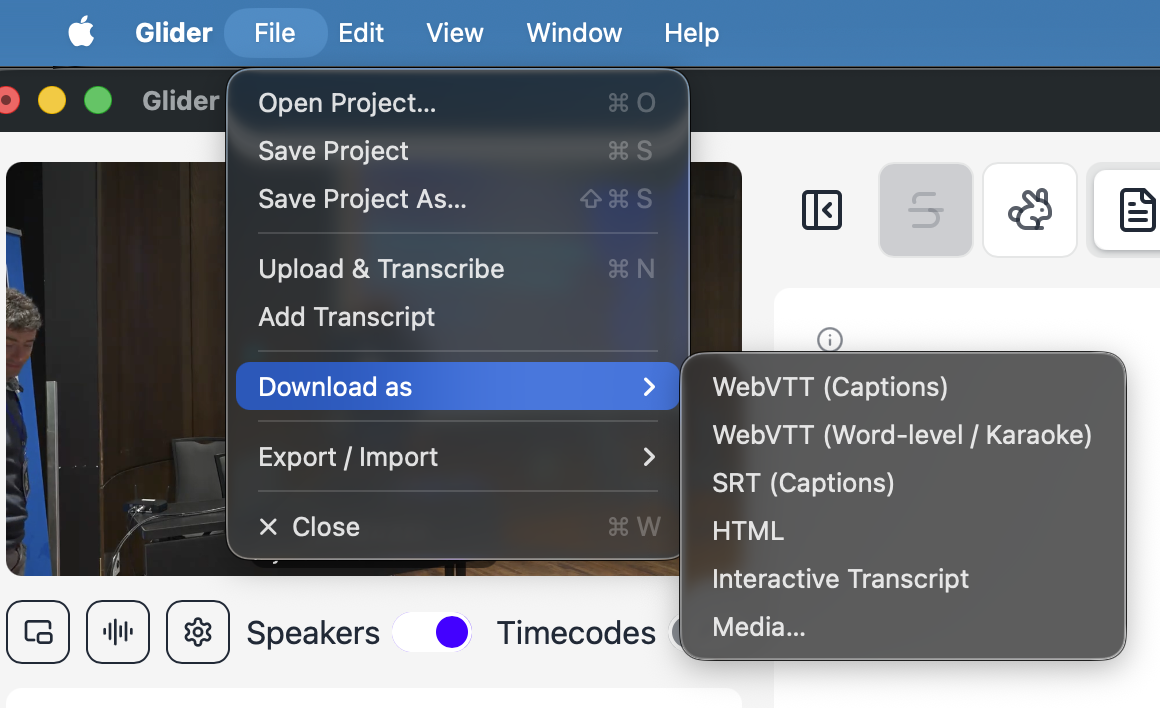
Export media dialog: choose entire or edited media, format, file name, adjust speed or length with pitch preserved, burn in captions, and also download an interactive transcript, captions and a project file. File › Download as: WebVTT captions, word-level WebVTT, SRT, HTML, interactive transcript, media. File › Export / Import: transcript as text, Markdown or Word; Hyperaudio and AT Protocol JSON; import Hyperaudio JSON, Deepgram JSON, SRT and VTT.

A view that adapts to you

Arrange Glider around the way you work, and turn on paragraph timecodes whenever you need them.

  • Compact view: hide the media and sidebar and keep just the transcript and controls, in a window that fits beside everything else.
  • Picture‑in‑picture: pop the video out to float wherever you like, or onto a second screen, while you edit on the first.
The talk video playing picture-in-picture, with captions.
Picture‑in‑picture on a second screen
Glider's compact view: just the toolbar, transcript and playback controls.
Compact view
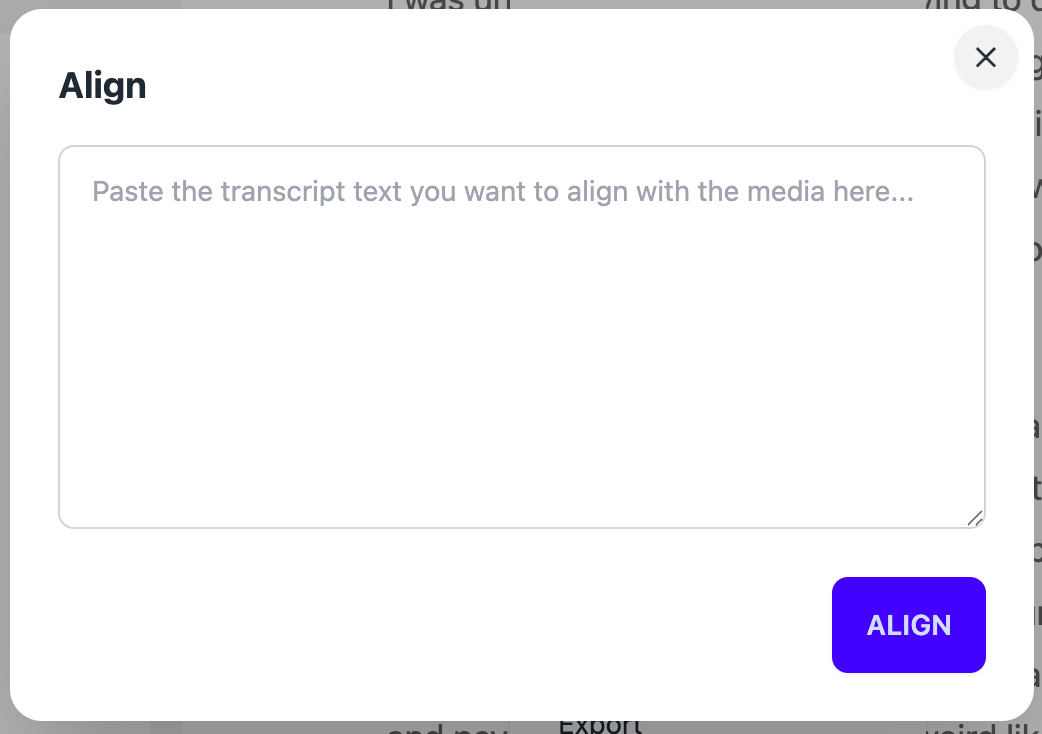
Aligning a pasted transcript to media.

Already have a transcript? Align it.

Paste an existing transcript and align it to the media to recover word‑level timings.

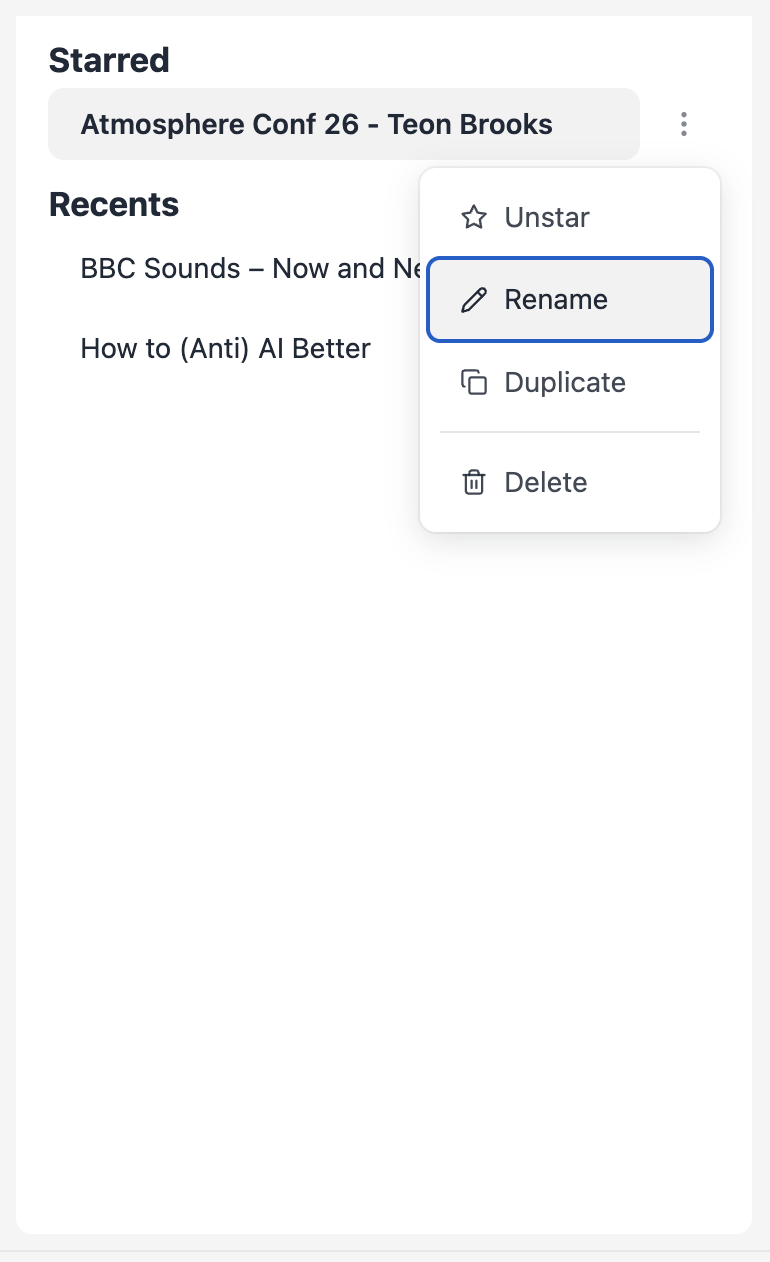
The project library in the sidebar.

A project library

Edits autosave continuously. Recent projects sit one click away, ready to rename, star, duplicate or export.

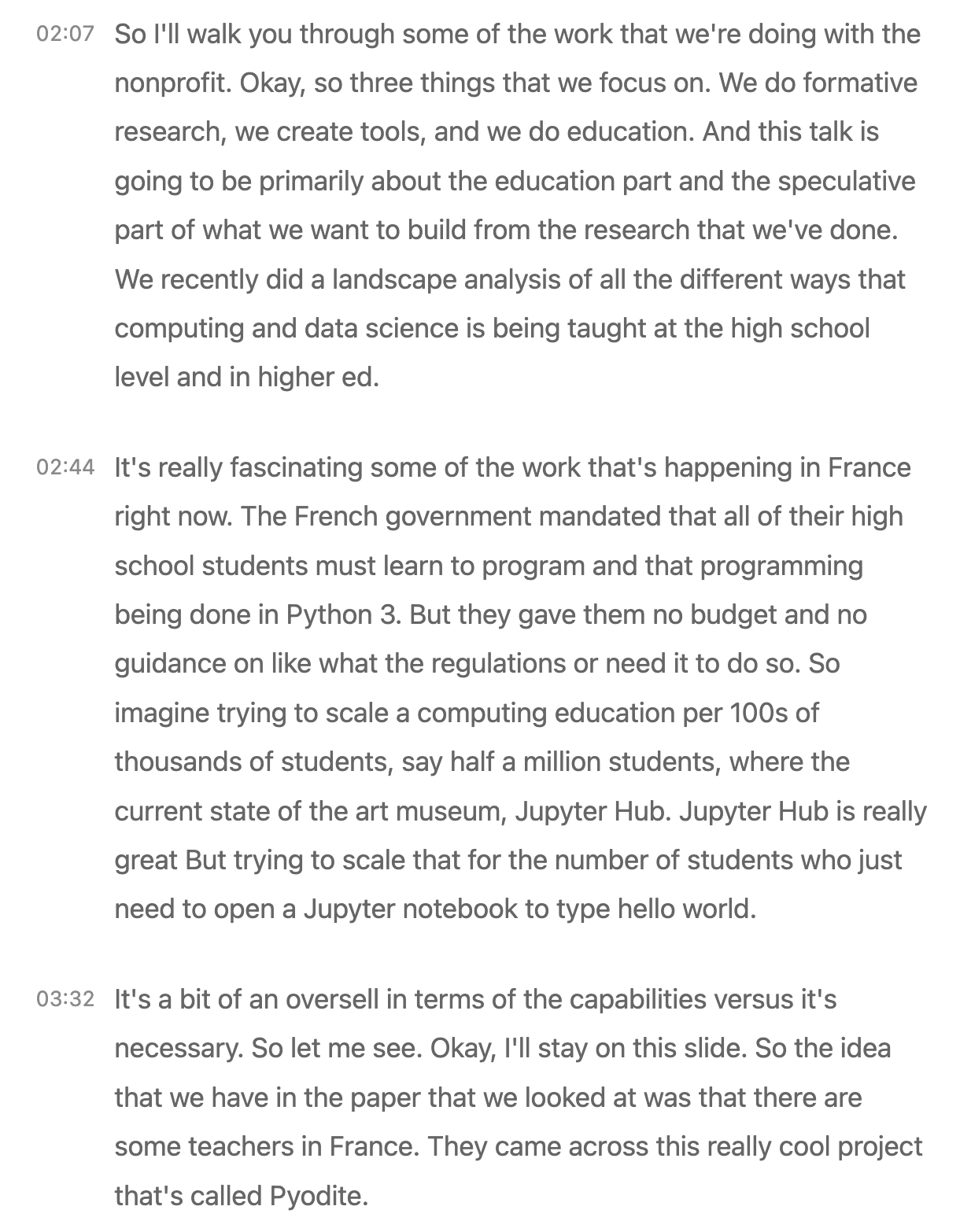
Paragraph timecodes toggled on.

Paragraph timecodes

Toggle timecodes on to see exactly where every paragraph sits in the recording.

Why interactive transcripts

Transcripts people can use.

This is what Glider publishes: an interactive transcript. Press play, click any word to jump there, or search for a moment.

0:00 / 0:00 video
interactive transcript

Speaker 1So, Glider, give me the 30-second version.

Speaker 2Okay, 30 seconds. It's a transcript editor for the Mac. You drop in a recording, it transcribes it, and then you edit the words and the audio and video just follow along.

Speaker 1And where does my audio actually go?

Speaker 2Nowhere. Everything happens on your Mac. Transcription, editing, even the final export. You could do the whole thing on a plane.

Speaker 1Huh. And is it quick?

Speaker 2Really quick. An hour of audio transcribed with the speakers worked out in under a minute.

Speaker 1Under a minute. Come on.

Speaker 2Honestly. Then you tidy it up. You strike out the um the ums.

Speaker 1 Like that one.

Speaker 2 Exactly like that one. And you skip the silences. They're gone from the transcript and the video.

Speaker 1What about captions?

Speaker 2They come straight out of the transcript. It even flags a caption that's too fast to read. Seventeen characters a second is the usual limit.

Speaker 1So who's it for?

Speaker 2Podcasters, journalists, researchers, oral historians, anyone with recordings they'd rather not upload.

Speaker 1And this conversation? Could it go through Glider?

Speaker 2It already has. The transcripts next to this player came straight out of it.

Transcribed and diarized by Glider, exported as an interactive transcript. Voices generated with ElevenLabs.

Enhanced searchability

People find the exact moment they need, and search engines index every word — better SEO and discoverability.

Improved accessibility

Reach everyone, including deaf and hard-of-hearing audiences, and meet accessibility standards.

Better experience

Scan quickly, jump to any section, and engage with media the way you prefer — passive becomes active.

Enhanced shareability

Highlight and share specific moments with precise timestamps — direct links to exact quotes.

Who it's for

Made for people who make media.

Journalists, researchers & oral historians

Sensitive interviews stay on your machine. Interviewer and interviewee are told apart automatically, and you can transcribe, redact and edit without sending a second of audio anywhere.

Podcasters

Transform your podcast workflow. Every host and guest is identified automatically, so the transcript arrives with speakers labelled, ready to edit and publish as an interactive transcript in minutes.

Video creators

Create professional captions and transcripts for your videos. Captions in WebVTT and SRT, ready for any player.

Educators

Make educational content accessible to all students, with searchable, interactive transcripts for lectures and instructional videos.

Marketing teams

Boost your content's discoverability. Create searchable, shareable media that stands out in search results and on social.

Open formats

Take your work anywhere.

Everything exports to standard files, so your media and transcripts are never locked in.

MP4 video Interactive transcript web page WebVTT captions Word‑level WebVTT karaoke SRT captions HTML Plain text Markdown Word .docx Hyperaudio JSON AT Protocol JSON ionosphere